
 LuBeDa
6e58a932ba
LuBeDa
6e58a932ba
|
3 years ago | |
|---|---|---|
| .github | 3 years ago | |
| components/ehmtx | 3 years ago | |
| copy2esphome | 3 years ago | |
| images | 3 years ago | |
| .gitignore | 3 years ago | |
| 8x32 iMAGE.xcf | 3 years ago | |
| CHANGELOG.md | 3 years ago | |
| LICENSE | 3 years ago | |
| README copy.md | 3 years ago | |
| README.md | 3 years ago | |
| TODO.md | 3 years ago | |
| fullfeature.yaml | 3 years ago | |
README.md
This is a work in progress. Don't use it for production!
Important information
If you like my work please donate me a star on github and consider sponsoring me!!
EspHoMaTriX version 2 (EHMTXv2)
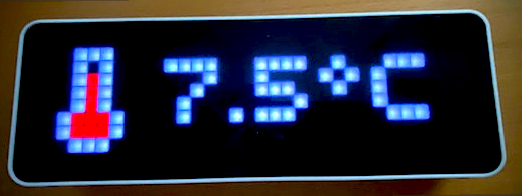
A simple but very flexible DIY status display, build with a flexible 8x32 RGB LED panel implemented with esphome.io
Important information
If you like my work please donate me a star on github and consider sponsoring me!!
Introduction
There are some "RGB-matrices" status displays/clocks out there, the commercial ones from Lametric and ulanzi, also some very good DIY-alternatives.
- LaMetric commercial ~ 199€
- Ulanzi TC001 commercial ~ 50€
- Awtrix (project has been discontinued after more than 4 years now in August 2022)
- PixelIt (project is under active development)
- Awtrix-Light From the developer of Awtrix, optimized for the Ulanzi TC001 Hardware
- lamatrix micropython based an around 5 years old
The solutions have their pros and cons. I tried some and used AwTrix for a long time. But the cons are so big (in my opinion) that I started an esphome.io variant. Targeted to an optimized Home Assistant integration, without paid blueprints and the need of mqtt.
But it had to be extensible, e.g. for the use as poolthermometer or as mediaplayer. All done by the magical power of esphome.
ehmtx in the media
See this German tutorial video with information on setting up your display RGB-LED Status Display für Home Assistant mit ESPHome | ESPHoMaTrix.
Another german tutorial video focused at the Ulanzi Smarte Pixel Clock über Home Assistant steuern - Entitäten / Icons und mehr in der Ulanzi
See this nice article about EsphoMaTrix on a Ulanzi TC001 from blakadder.
Short video on Instagram @blak_adder
See this english discussions: Share your projects ESPHOME
It was also mentiond in the blog Building the Open Home and in the home assistant livestream
Or in german: Showroom
Features
Based a on a 8x32 RGB matrix it displays a clock, the date and up to 24 other 'screens' provided by Home Assistant. Each screen (value/text) can be associated with a 8x8 bit RGB icon or gif animation (see installation). The values/text can be updated or deleted from the display queue. Each screen has a lifetime, if not refreshed in its lifetime, it will disappear. Even 8x32 gif animations are possible. You can control nearly everything of the component.
State
After the old component became favorite, there where some feature requests, which showed that my old code was a mess. I reworked the whole code and restructered it, so it is now hopefully more extensible.
How to use
The easy way
There is a little hype around the Ulanzi TC001 pixel clock. This hardware can be used with EspHoMaTriX v2.
Steps (easy)
Step 1
Copy these files:
- ulanzi-simple.yaml
- EHMTXv2.ttf
to your esphome directory (usually /config/esphome). In your esphome dashboard you will find a new device named ulanzi-simple.
Step 2
connect your ulanzi device to your host with USB-C and flash the firmware.
Step 3
Copy EHMTX_easy_state.yaml to your blueprint path (usually /config/blueprints/automation/) in an subfolder named ehmtxv2.
Reload your automations and have fun after configuring some automations with this blueprint.
result
The device should boot

and after a while (~30 seconds) it should display the correct time
 .
.
If not check the esphome logs for further investigations.
The funny but more elaborate way
This is for the more advanced users. If you unterstand the concept of esphome, you can display nearly everything with this component.
Concept
You can add screens to a queue and all this screens are displayed one after another.
 Each screen can display different informations or is of a different kind. They all have a lifetime, if a screen isn't refreshed during its lifetime it will be removed from the queue. If there is nothing left in the queue the date and time screens are displayed. Some screens can show additional features like an alarm or indicator see elements.
You can add screens from home assistant with services or from esphome via yaml.
Each screen can display different informations or is of a different kind. They all have a lifetime, if a screen isn't refreshed during its lifetime it will be removed from the queue. If there is nothing left in the queue the date and time screens are displayed. Some screens can show additional features like an alarm or indicator see elements.
You can add screens from home assistant with services or from esphome via yaml.
Screen types
Date/Time screen
service
clock_screen => {"lifetime", "screen_time", "default_font", "r", "g", "b"}
date_screen => {"lifetime", "screen_time", "default_font", "r", "g", "b"}
api
all parameters have a default value.
void clock_screen(int lifetime=D_LIFETIME, int screen_time=D_SCREEN_TIME,bool default_font=true,int r=C_RED, int g=C_GREEN, int b=C_BLUE);
void date_screen(int lifetime=D_LIFETIME, int screen_time=D_SCREEN_TIME,bool default_font=true, int r=C_RED, int g=C_GREEN, int b=C_BLUE);
icon screen

service
icon_screen => {"icon_name", "text", "lifetime", "screen_time", "default_font", "r", "g", "b"}
api
void icon_screen(std::string icon, std::string text, int lifetime=D_LIFETIME, int screen_time=D_SCREEN_TIME,bool default_font=true,int r=C_RED, int g=C_GREEN, int b=C_BLUE);
fullscreen
For 8x32 icons or animations

service
fullscreen => {"icon_name", "lifetime", "screen_time"}
api
void EHMTX::fullscreen(std::string iconname, int lifetime, int screen_time)
Elements

alarm
The alarm is displayed in the upper right corner at all screentypes! You can set its color.
service
show_alarm => { "r", "g", "b"}
api
void EHMTX::show_alarm(int r, int g, int b);
r,g,b: 0-255 color components
To remove it call:
service
hide_alarm => no parameter
api
void EHMTX::hide_alarm();
indicator
The indicator is in the lower left corner but not displayed in fullscreen 8x32 animations. You can set its color.
service
show_indicator => { "r", "g", "b"}
api
void EHMTX::show_indicator(int r, int g, int b);
r,g,b: 0-255 color components
To remove it call:
service
hide_indicator => no parameter
api
void EHMTX::hide_indicator();
gauge
The gauge is displayed in the left most column. You can set its color und its value from 0-100, the resolution is limited to 8 pixels, so it is not a precision gauge.
service
show_gauge => {"value","r", "g", "b"}
api
void EHMTX::show_gauge(int value, int r, int g, int b);
value: 0-100 (resolution: one pixel per 12,5%) r,g,b: 0-255 color components
To remove it call:
service
hide_gauge => no parameter
api
void EHMTX::hide_gauge();
Installation
EspHoMaTriXv2 custom component
EspHoMaTriXv2 is a custom component, you have to include it in your yaml configuration. To always use the newest features you should use the repo, to use a stable version you copy a working version to your esphome installation.
local use
If you download the components-folder from the repo and install it in your esphome you have a stable installation. But if there are new features, you won't see them. If needed customize the yaml to your folder structure.
external_components:
   - source:
       type: local
       path: components # e.g. /config/esphome/components
use from repo
Use the github repo as component. Esphome refreshes the external components "only" once a day, perhaps you have to refresh it manually. In this mode there may be breaking changes, so read the changelog and check to logs while installing the firmware.
external_components:
  - source:
      type: git
      url: https://github.com/lubeda/EspHoMaTriXv2
      ref: release # optional select a special branch or tag
Addressable_light component
The EspHoMaTriXv2 component requires a 8x32 pixel addressable_light, it is referenced by the id matrix_component.
See the default options
There are some different matrices-types on the market, to adapt them to EspHoMaTriXv2 you have to find the proper pixelmapper. If there is garbage on your display try the other pixel_mapper. Here are the most common types for flexible 8x32 matrices:
Type 1
Common for 8x32 RGB flexible matrices.
under the display tag specify this pixelmapper:
display:
  - platform: addressable_light
    .....
    pixel_mapper: |-
      if (x % 2 == 0) {
        return (x * 8) + y;
      }
      return (x * 8) + (7 - y);
    .....
Type 2 (e.g. Ulanzi TC001)
Under the display tag specify this pixelmapper:
display:
  - platform: addressable_light
    .....
    pixel_mapper: |-
      if (y % 2 == 0) {
        return (y * 32) + x;
      }
      return (y * 32) + (31 - x);
    .....
Type 3 (daisychained 8x8 panels)
display:
  - platform: addressable_light
    .....
    pixel_mapper: |-
            return ((int) (x/8 * 64)) + x % 8 + y * 8;
    .....
How to configure the pixel_mapper
You have to configure this lambda under the display: section to use the EspHoMaTriXv2 component
display:
  - platform: addressable_light
    id: ehmtx_display
    .....
    auto_clear_enabled: true
    lambda: |-
      id(rgb8x32)->tick();
      id(rgb8x32)->draw();
Light component
The light component is used by the addressable_light component and referenced by id under addressable_light_id:.
To use the light component directly from home assistant add the sample lambdason_turn_on and on_turn_off to the light component.
Sample
light:
  - platform: neopixelbus
    id: ehmtx_light
    ....
    on_turn_on:
      lambda: |-
                  id(rgb8x32)->set_enabled(false);
    on_turn_off:
       lambda: |-
                  id(rgb8x32)->set_enabled(true);
To hide the light component in home assistant use: internal: true
light:
  - platform: neopixelbus
    id: ehmtx_light
    internal: true
    ...
Time component
Since it is a clock you need a time component e.g. homeassistant. It is referenced by its id under time_component: The display shows !t! until the time source is synchronized and valid.
Font
In the easy configutation is a ttf-font included, it is based on this font. Or you can search a font you like more.
Not all fonts are suitable for this minimalistic display. There are public domain fonts wich work well on the display e.g. DMDSmall, details on alternative fonts are here.
You can configure two fonts if you like.
DarkPoet78 is also providing special fonts for 8x32 matrices in his repo
font:
  - file: EHMTXv2.ttf
    id: default_font
    size: 16
    glyphs:  |
            !"%()+*=,-_.:°0123456789ABCDEFGHIJKLMNOPQRSTUVWXYZ abcdefghijklmnopqrstuvwxyz€@
Icons and Animations
Download and install all needed icons (.jpg/.png) and animations (.gif) under the ehmtx: key. All icons have to be 8x8 or 8x32 pixels in size. If necessary scale them with gimp, check "as animation" for gifs.
You can also specify an URL to directly download the image file. The URLs will only be downloaded once at compile time, so there is no additional traffic on the hosting website.
The icons and animations from the awtrix and atrix-light could be used, but have to be scaled down to 8x32 or 8x8 pixels. Check the licence befor using them!
There are maximum 90 icons possible.
Sample
emhtx:
  icons:
    - id: boot
      file: icons/rocket.gif
      duration: 75
    - id: temp
      file: temperature.png
    - id: yoga
      file: icons/yoga-bridge.gif
      pingpong: true
    - id: garage
      file: garage.gif
      duration: 100
    - id: homeassistant
      url: https://github.com/home-assistant/assets/raw/master/logo/logo-special.png
The id of the icons is used later to configure the screens to display. So you should name them wisely. If you like to group icons you should prefix them e.g. with "weather_" (see Service del_screen)
The first defined icon will be used as a fallback icon, in case of an error, e.g. if you use a non-existing icon id.
GIFs are limited to 110 frames to limit the used amount of flash space.
All other solutions provide ready made icons, especially Lametric has a big database of icons. Please check the copyright of the icons you use. The maximum amount of icons is limited to 90 in the code and also by the flash space and the RAM of your board.
See also icon parameter
Configuration
ehmtx component
This component is highly customizable.
Example
ehmtx:
  id: rgb8x32
  clock_time: 7
  screen_time: 9
  show_seconds: true
  matrix_component: ehmtx_display
  time_component: ehmtx_time
  icons2html: true
  default_font_id: default_font
  special_font_id: special_font
  special_font_yoffset: 7
  default_font_yoffset: 6
  brightness: 80 # percent
  time_format: "%H:%M"
  date_format: "%d.%m."
  week_start_monday: true # false equals sunday
  scroll_count: 2 # scroll long text at least two times
  scroll_interval: 80 # milliseconds
  frame_interval: 192 # milliseconds
  icons:
     .....
Parameters
id (required, ID): Manually specify the ID used for code generation and in service definitions.
clock_time (optional, seconds): duration to display the clock after this time the date is display until next "show_screen". If show_date is false and clock_time > 0 the clock will be display as long as a normal screen! Setting clock_time to 0 will not show the clock or date. If there are no screens ind the queue the display will be blank until the next screen is sent.
screen_time (optional, seconds): default duration to display a screen or a clock/date sequence, a long text will be scrolled at least scroll_count times (default: 10 seconds). This may be overwritten by the add_screen service.
hold_time (optional, seconds): extends the display time of the current screen in seconds (default=20). Used in services or automations, see hold_screen
date_format (optional, string): formats the date display with strftime syntax, defaults "%d.%m." (use "%m.%d." for the US)
show_seconds (optional, boolean): toggle an indicator for seconds while the clock is displayed (default: false)
time_format (optional, string): formats the date display with strftime syntax, defaults "%H:%M" (use "%I:%M%p" for the US)
default_font_yoffset (optional, pixel): yoffset the text is aligned BASELINE_LEFT, the baseline defaults to 6
default_font_xoffset (optional, pixel): xoffset the text is aligned BASELINE_LEFT, the left defaults to 1
special_font_yoffset (optional, pixel): yoffset the text is aligned BASELINE_LEFT, the baseline defaults to 6
special_font_xoffset (optional, pixel): xoffset the text is aligned BASELINE_LEFT, the left defaults to 1
matrix_component (required, ID): ID of the addressable display
show_dow (optional, bool): draw the day of week indicator on the bottom of the clock screen. Disable e.g. if you want larger fonts, defaults to true.
time_component (required, ID): ID of the time component. The display shows !t! until the time source is valid.
default_font (required, ID): ID of the default font
special_font (required, ID): ID of the special font, you can reuse your default font, but sometimes its nice to have a specialer font to minimise scrolling
week_start_monday (optional, bool): default monday is first day of week, false => Sunday
scroll_interval (optional, ms): the interval in ms to scroll the text (default=80), should be a multiple of the update_interval from the display
frame_interval (optional, ms): the interval in ms to display the next animation/icon frame (default = 192), should be a multiple of the update_interval from the display. Can be overwritten per icon/gif see icons parameter frame_duration
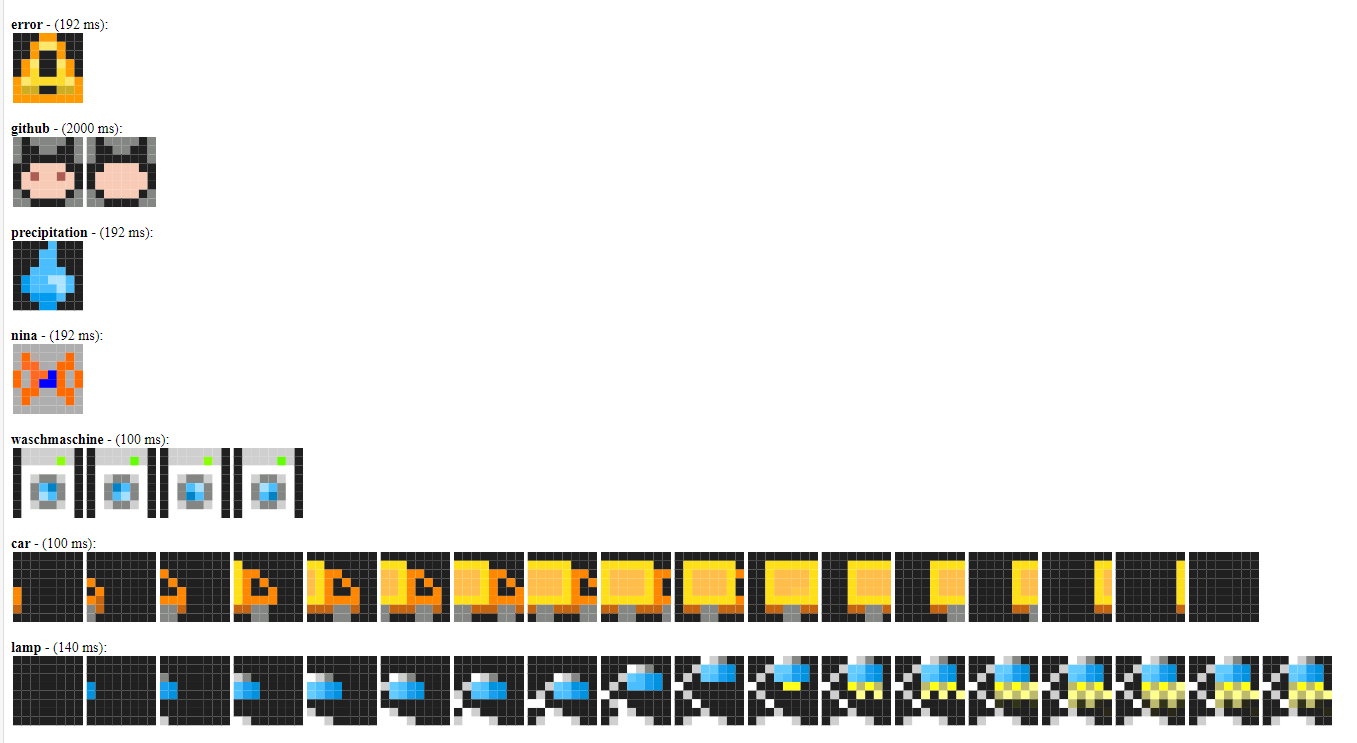
icons2html (optional, boolean): If true, generate the html (filename.html) file to show all included icons. (default = false)
Example output:
icons
Parameters See icon details
-
frame_duration (optional, ms): in case of a gif file the component tries to read the default interval for each frame. The default/fallback interval is 192 ms. In case you need to override the default value set the duration per icon.
-
pingpong (optional, boolean): in case of a gif file you can reverse the frames instead of starting from the first frame.
-
file (Exlusive, filename): a local filename
-
url (Exclusive, url): an URL to download the icon
-
lameid (Exclusive, number): the ID from the lametric icon database
Control your display
A lot of features are accessible with actions, you can use in your yaml
Local actions/lambdas
Add screen to your display queue
You can add screens locally and display data directly from any local sensor. See this sample:
Lambda
Take care that the char text[30]; has enough space to store the formated text.
sensor:
  - platform: bh1750
    id: sensorlx
    ...
    on_value:
      then:
        lambda: |-
          char text[30];
          sprintf(text,"Light: %2.1f lx", id(sensorlx).state);
          // 5 Minutes,each time at least 11 seconds,no alarm
           id(rgb8x32)->icon_screen("sun", text); // uses default values for color etc.
Set (alarm/clock/gauge/text/today/weekday) color action
Sets the default color of the selected element
Lambda set text color
  lamda:
    id(rgb8x32)->set_text_color(200,45,12);
Force screen
Force the selected icon_screen icon_name to be displayed next. Afterwards the loop is continuing from this screen. e.g. helpfull for alarms. Or after an update of the value/text.
id(rgb8x32)->force_screen("homeassistant");
Change configuration during runtime
Configuration variables/functions:
Experienced programmers can use this public methods:
Local trigger
To use the display without homeassistant automations, you may use the advanced functionality with triggers. The triggers can be fired by sensors, time or by the ehmtx component.
on_next_screen
There is a trigger available to do some local magic. The trigger on_next_screen is triggered every time a new screen is displayed (it doesn't trigger on the clock/date display!!). In lambda's you can use two local string variables:
x (Name of the icon, std::string): value to use in lambda
y (displayed text, std::string): value to use in lambda
See the examples:
Write information to esphome log
ehmtx:
  ....
  on_next_screen:
    lambda: |-
        ESP_LOGD("TriggerTest","Iconname: %s",x.c_str());
        ESP_LOGI("TriggerTest","Text: %s",y.c_str());
Send an event to Home Assistant
To send data back to home assistant you can use events.
ehmtx:
  ....
  on_next_screen:
    - homeassistant.event:
        event: esphome.next_screen
        data_template:
          iconname: !lambda "return x.c_str();"
          text: !lambda "return y.c_str();"
Result

on_next_clock
The trigger on_next_clock is triggered every time a new clock display circle starts.
See the examples:
Change something for each clock circle
ehmtx:
  ....
  on_next_clock:
    lambda: |-
            id(rgb8x32)->.......
(D) Service brightness
Sets the overall brightness of the display (0..255)
parameters:
brightness: from dark to bright (0..255) (default =80) as set in the light component bycolor_correct: [30%, 30%, 30%]
There's an easier way by using a number component:
number:
  - platform: template
    name: "LED brightness"
    min_value: 0
    max_value: 255
    step: 1
    lambda: |-
            return id(rgb8x32)->get_brightness();
    set_action:
      lambda: |-
                id(rgb8x32)->set_brightness(x);
(D) Service del_screen
Removes a screen from the display by icon name. If this screen is actually display while sending this command the screen will be displayed until its "show_screen"-time has ended.
optionally you can suffix a * to the icon name to perform a wildcard delete which will delete all screens beginning with the icon_name specified.
For example if you have multiple icons named weather_sunny, weather_rain & weather_cloudy, you can issue a del_screen weather_* to remove whichever screen is currently in a slot and replace it with a new weather screen.
parameters:
icon_name: Iconiddefined in the yaml (see installation)mode: The mode is for internal purposes use5for icon_screen
| mode | value |
|---|---|
| MODE_BLANK | 1 |
| MODE_CLOCK | 2 |
| MODE_DATE | 3 |
| MODE_FULLSCREEN | 4 |
| MODE_ICONSCREEN | 5 |
| MODE_TEXT | 6 |
(D) Service display_on / display_off
Turns the display on or off
There's an easier way in using a switch component:
Sample
switch:
  - platform: template
    name: "$devicename Display"
    icon: "mdi:power"
    restore_mode: ALWAYS_ON
    lambda: |-
            return id(rgb8x32)->show_display;
    turn_on_action:
      lambda: |-
                id(rgb8x32)->set_display_on();
    turn_off_action:
      lambda: |-
                id(rgb8x32)->set_display_off();
Service skip_screen
If there is more than one screen in the queue, it skip the actual displayed screen to the next screen.
e.g. on the Ulanzi TC001
binary_sensor:
  - platform: gpio
    pin:
      number: $left_button_pin
      inverted: true
    on_press:
      lambda:
        id(rgb8x32)->skip_screen();
Service hold_screen
Displays the current screen for configured ammount (see hold_time) (default=20) seconds longer.
e.g. on the Ulanzi TC001
binary_sensor:
  - platform: gpio
    pin:
      number: $right_button_pin
      inverted: true
    on_press:
      lambda:
        id(rgb8x32)->hold_screen();
(D) Service status
This service displays the running queue and a list of icons in the logs
[13:10:10][I][EHMTX:175]: status status: 1  as: 1
[13:10:10][I][EHMTX:176]: status screen count: 3
[13:10:10][I][EHMTX:181]: status slot: 0 icon: 36  text: 47.9°C end: 400
[13:10:10][I][EHMTX:181]: status slot: 1 icon: 23  text: Supa langer Text end: 310
[13:10:10][I][EHMTX:181]: status slot: 2 icon: 1  text: 10.3°C end: 363
[13:10:10][I][EHMTX:186]: status icon: 0 name: boot
[13:10:10][I][EHMTX:186]: status icon: 1 name: temp
[13:10:10][I][EHMTX:186]: status icon: 2 name: garage
[13:10:10][I][EHMTX:186]: status icon: 3 name: wind
[13:10:10][I][EHMTX:186]: status icon: 4 name: rain
Integration in Home Assistant
To control your display it has to be integrated in Home Assistant. Then it provides a number of services, all prefixed with the configured devicename e.g. "ehmtx". See the default services marked as (D) above, but you can add your own (see alarm and screen).
Services
All communication with Home Assistant use the homeasistant-api. The services can be provided by default or also defined additionally in the yaml. To define the additional services you need the id of the ehmtx-component e.g. id(rgb8x32).
Use in Home Assistant automations
The easiest way to use ehmtx as a status display is to use the icon names as trigger id. In my example i have an icon named "wind" when the sensor.wind_speed has a new state this automation sends the new data to the screen with the icon named "wind" and so on.
alias: EHMTX 8266 Test
description: ''
trigger:
  - platform: numeric_state
    entity_id: sensor.wind_speed
    id: wind
  - platform: state
    entity_id: sensor.actual_temperature
    id: temp
  - platform: state
    entity_id: sensor.wg_cover_device
    id: cover
condition: []
action:
  - service: esphome.ehmtx8266_icon_screen
    data:
      icon_name: '{{trigger.id}}'
      text: >-
                {{trigger.to_state.state}}{{trigger.to_state.attributes.unit_of_measurement}}
mode: queued
max: 10
Tipps
Display precision after home assistant 2023.3.0
See templating for possibilities to optimize the output
e.g.
{{ states(sensor.solarpower, rounded=True) }} kWh
Specific icons per condition
Add an icon per weather condition to the ehmtx component
  - id: weather_clear_night
      lameid: 52163
    - id: weather_cloudy
      lameid: 25991
    - id: weather_fog
      lameid: 52167
    ......
Sample automation to show the weather with local temperature
alias: EHMTX weather
description: weather with icon per condition
trigger:
  - platform: state
    entity_id: weather.metno
action:
  - service: esphome.ulanzi_del_screen
    data:
      icon_name: weather_*
      mode: 5
  - service: esphome.ulanzi_icon_screen
    data:
      icon_name: weather_{{ trigger.to_state.state }}
      text: >-
                {{ states("sensor.external_actual_temperature") }}°C
      ....
or another sample automation for the trashcan type
alias: "EHMTX Müllanzeige"
description: Anzeige welche Tonne raus muss. iconnamen gekürzt
trigger:
  - platform: time
    at:
      - "06:30"
      - "08:30"
      - "10:30"
      - "15:00"
      - "17:00"
      - "19:00"
condition:
  - condition: numeric_state
    entity_id: sensor.mulltrigger
    below: "3"
action:
  - service: esphome.ulanzi_del_screen
    data:
      icon_name: trash_*
      mode: 5
  - service: esphome.ulanzi_icon_screen
    data:
      icon_name: >-
        trash_{{ states("sensor.mulldetails") | replace("Biotonne",   "brow")|
        replace("Papiertonne","blue")| replace("Restmüll",   "grey")|
        replace("gelbe Tonne","yell|") | truncate(4,true,"")  }}
      text: >-
        {{ states("sensor.mulldetails")|replace(" in","")|replace(" days","
        Tagen") | replace ("0 Tagen","heute") | replace ("1 Tagen","morgen")}}
      lifetime: 120
      ...
Integrate in Home Assistant UI
Add entities to Home Assistant UI for interactive control of your display
Brightness
number:
  - platform: template
    name: "$devicename brightness"
    min_value: 0
    max_value: 255
    step: 1
    lambda: |-
            return id(rgb8x32)->get_brightness();
    set_action:
      lambda: |-
                id(rgb8x32)->set_brightness(x);
Display switch
switch:
  - platform: template
    name: "$devicename Display"
    icon: "mdi:power"
    restore_mode: ALWAYS_ON
    lambda: |-
            return id(rgb8x32)->show_display;
    turn_on_action:
      lambda: |-
                id(rgb8x32)->set_display_on();
    turn_off_action:
      lambda: |-
                id(rgb8x32)->set_display_off();
automatic brightness
Awtrix and PixelIt have hardcoded functionality. EHMTX is also capable to build something like that by lambdas. But this is all your freedom. See the Ulanzi simple yaml as guide.
Example: automatic brightness control with an bh1570 sensor
sensor:
  - platform: bh1570
    # ...
    on_value:
      then:
         lambda: |-
            if (x > 200)
            {
               id(rgb8x32)->set_brightness(50);
            } else {
               id(rgb8x32)->set_brightness(250);
            }
Breaking changes
nothing yet, since it is new
Usage
The integration works with the Home Assistant api so, after boot of the device, it takes a few seconds until the service calls start working. If you see a growing green rectangle after boot you have to wait a bit until the api is connected etc.
Disclaimer
THE SOFTWARE IS PROVIDED "AS IS", use at your own risk!
Thanks
- blakadder for his contribution (cleanup README.md,fixed sample)
- andrew-codechimp for his contribution (display on/off & del_screen "*" & show_clock with 0)
- jd1 for his contributions
- aptonline for his work on the ulanzi hardware
- wsbtak for the work on the ulanzi hardware
- ofirsnb for his contributions
- darkpoet78 for his work on optimized fonts
- pplucky for his 8x32 gif animation
- ** everbody that found bugs/issues and reported them!
